The plugin I share today has two extremes. It is the plugin with one of the longest name, “Block Editor: Reverse Columns on Mobile“, but the least amount of code. The PHP code only loads some JavaScript and CSS. All in all, it has some 250 lines of code combined.
I use it on one site that tries to use “no code”. The content and design is almost exclusively build with the Site and Block Editor.
What does the plugin do?
As the name says: it reverses columns on mobile. Let’s imagine you have a page with multiple “Media & Text” block. For a nice layout, you place the image on the left for the first one, on the right for the next one, then again on the left and to on. If you now view the page one mobile, by default, those blocks would always place the left column above the right one. So you would end up with something like this: image, text, text, image, image, text, text, image, …
This doesn’t really look nice on mobile. Instead, you probably want to have the image always above the text or always below the text. You could fix this by manually adding a custom CSS class to every other block and then use some custom CSS in your theme (or the Site Editor global styles), or, you can simply use this plugin, that adds a checkbox to the core/columns, core/group (flex layouts), and core/media-text block.
Why do I use the plugin
As mentioned earlier, I do use it on a site that tries not to use custom plugin and/or theme code. It should also allow anyone editing the content to easily use this functionality. For my personal blog and websites, I would probably just introduce a custom CSS class that I would add to such blocks. But why always “reinvent the wheel”, when there is a plugin that just does what it’s supposed to do, and nothing more. The CSS even takes care of RTL (right to left) languages/designs and different ways to arrange elements next to each other. I would probably miss some of those cases in my own custom CSS class.
Conclusion
Even though some people argue that having fewer plugins is better, I really like plugins like this one, that solves one thing the exact way, I would have implemented it myself.
Have you also found a plugin that improves small things in the Block or Site Editor? Then please share them in a comment with us.
I can’t remember when I discovered BackWPup and for how long I’ve been using it. Back then, it was soley developed by Daniel Hüsken. When he realized that he does not have the time to work on the plugin just by himself anymore, he joined Inpsyde, the agency I currently work at (we are now called Syde), and brought the plugin with him. A little more than two year ago, the plugin was acquired my WP Media, the company behind plugins like WP Rocket, Imagify, and others. Even though many didn’t like the new UI WP Media introduced, I still use the plugin on many of my website.
What does BackWPup do?
It’s a backup plugin, so it is used to back up your site. In the free version, you can send backups to different targets. It supports:
Email (which really only works for database backups)
Microsoft Azure
S3 providers
Dropbox
Rackspace
SugarSync
an external FTP server
and the same server (which is not a good place for a backup)
In the past, restores were only available in the premium version, but they are now made available in the free version as well. But since I know how to restore a backup from files, I never used the restore functionality, as I don’t really know what it would all do. A recent version also added a migration feature, which I have never tested.
Why I use BackWPup?
There are many backup plugins out there. One reason I might (still) use BackWPup might be, that it was the one I first discovered. But I also like one of it’s core features: being able to set up multiple backup jobs. Many other backup plugins only have one job (one set of settings) which can run on a schedule. With BackWPup, you can set up as many backup jobs as you want. I have one that runs daily and that backs up the database. Another one does a full file system backup. For each job, you can decide where the files should be stored. So, you could have the database stored on an external service and sent to you by mail (if it’s really small), while the files are stored on an external storage that can hold a lot of data.
What are the alternatives I’ve tried?
On some websites, mostly those I do not maintain alone, we use UpdraftPlus (the free version). While it offers an easier UI and had a restore functionality in the free version for years (maybe even from the very beginning), I don’t like the limitation to only one backup job. It also only backs up the folders in wp-content by default and stores them in multiple ZIP files you need to download and extract separately. I’ve heard that the premium version can back up your whole installation, but since BackWPup also does that, there is no reason for me to switch, since I also don’t need a restore functionality. The only thing it offers in the free version that would be nice in BackWPup is the support for Google Drive.
Conclusion
Since I want to have multiple backup jobs and don’t need a plugin with a restore functionality, I have chosen BackWPup as my primary backup plugin many years ago and am still using it. Restoring from the (single) ZIP file is rather easy, if you work on the terminal anyways. If you use Local, you can even set up a local environment from the ZIP file directly. So if you are still looking for a (plugin) backup solution, give BackWPup a try.
This is the first blog post of my “plugin advent calendar“. In the next 24 days, I want to cover plugins I use on my personal websites and websites I help maintain. I hope that I’ll be able to publish each of them at midnight every day.
Since I want to cover them in alphabetical order (with two exceptions), the first one had to cover one of the plugins I see as essential for any blog: Antispam Bee.
This plugin was developed by Sergej Müller and is now maintained by the Pluginkollektiv. Since I’m a member of that group as well, I also help to maintain it.
What does Antispam Bee do?
It blocks comment spam. It’s as simple as that. And it does it really really well. It has many different tactics to recognize spam comments and only from time to time, I have to moderate a pending comment as spam, since some spam comments are written manually by real people using comment content that makes sense to the specific blog post.
Does Antispam Bee also block other types of spam, like form submissions or sign-ups, you might ask? No, it currently does not. This was never a focus of the plugin. It only helps with comment spam, but here it does shine.
But this on only partly true. The Pluginkolletiv, so me as well, is working on a new version. This new version would also only work for comments out of the box. But it will offer an “API” that can be used for other things than comments. You use the “Contact Form 7” plugin for example to add a comment form to your blog? There might be a (third-party) plugin to integrate Antispam Bee with Contact Form 7 in the future.
Work on that new version was started some years ago, and since introducing a new version for such a successful plugin comes with a lot of risks, we really want to make sure it works for existing sites – Antispam Bee has currently 700,000+ active installations, and we don’t want to break any of those or make the spam protection less efficient. I’ve spent some time in my last holidays to test the spam protection efficiency of the new “work in progress” version with around 300,000 comments from my blog and the new version captured every single comment the current version did, just in a different (and even better) way. So I am very positive that 2026 will be the year that Antispam Bee 3 will finally be released. 🤞
Why I use Antispam Bee?
As I welcome comments on my blog posts – and I would love to see more of you commenting 😉 – I do get a lot of spam comments as well. Right now, I have almost 300,000 spam comments in my database (just for my English) blog, compared to a mere 634 comments that are not spam. You could say, I really need a plugin like Antispam Bee.
But why do I use it and not another plugin. I had been using a different anti-spam plugin for my English blog, as it worked better for comment spam in English many years ago. This was, probably, due to the fact that Antispam Bee was developed by a German developer for his blog and he got more comments in German. But many years ago, I replaced that other plugin with Antispam Bee on my English blog as well. Some of you might use Akismet, which comes pre-installed with WordPress, but unlike Antispam Bee, it is not privacy-friendly, and we Germans have a reputation, that we care a lot about privacy, and so do I.
Conclusion
If you do allow comments on your blog or website, and you do get comment spam, give Antispam Bee a try. Just install it and activate it. The default settings work very well for most sites and is not using any advanced techniques that are not as privacy-friendly. If you already use Antispam Bee, and you like it, why not give it a review on WordPress.org today?
If you are an active reader of my blog, or look at the timestamp of my latest blog post, you’ll recognize that I have not published a blog post in more than 14 weeks. This has different reasons, the biggest one that I became a father in September. Those of you who also care for someone will know, that this takes away a lot of your available time – and it can also be exhausting.
Am I going to continue blogging?
Absolutely! I have committed myself to #project26, but since I only managed to publish 13 posts this year and with just one month left, this might be hard to achieve. But I do have a plan – and I hope it’s going to work out. 😅
A plugin advent calendar
Just as last year, I will try to have another advent calendar in December. Last year, I focused on “web technologies”, while in previous years I had “normal topics”. Those topics, however, take a lot of time to write, since I often also write code examples. So to make it a little easier this year, I will pick up the advent calendar idea from KrautPress. Last year, they have published blog posts, each covering one plugin per blog post in their “Advent of Plugins“.
I’ve spent the last week collecting a list of plugin for my advent calendar. Every plugin is used on one of my site, or on a site I help maintain. Some blog posts will cover more than one plugin, since I also use some “add-on plugins” to some larger plugins.
How will the blog continue next year?
I still want to blog regularly. I was told, that as a parent you will have more free time, the older the child gets. Let’s see if this is going to true. But even if I try to publish 26 blog posts, I might not post here until later next year, since my blog posts often a topic that come up at my day job, and as I take a long parental leave period, I might not have anything to blog about. But I do have an idea for a new blog, which will be about a different topic. You might have guessed it already, I want to blog about things that are relevant for parents. 😊
Conclusion
So, starting next Monday, you will be able to read about the first plugin I use regularly on my sites. I will order them alphabetically. Maybe you can guess which one I will cover first. 😉
In the same project I blogged about last week, I was tasked to optimize the performance of the website. One of the major issues was the login performance. Any time I would log in, I had to wait around one minute before I could see the dashboard. But what was wrong with the site, that it was so slow?
An enormous database
When I’ve started analyzing the site, I first had to set it up locally. This alone took me several days! The database was so large, I literally had to upgrade the SSD in my laptop, before I could even think about importing it. The database dump was “only” around 40 GB in size, but after the import, I used up around 100 GB on my SSD. Since I wanted to optimize it and have backups, I copied the whole database twice in the end, as I also did an HPOS migration. So after spending hours installing a new SSD, copying my whole system (a Windows/Linux dual boot), fixing a broken bootloader and running the database import, I was finally ready to start analyzing the page.
Finding the performance bottleneck for the login
After my first login, the Query Monitor plugin showed me two queries that took extremely long. This is what they looked like:
SELECT COUNT(*)
FROM   wp_comments
WHERE  user_id = 123456
AND    comment_approved = 1
Two of those queries took around 30 seconds each. This increased the login time by one full minute. Query Monitor also gave me the info which “Caller” executed those queries. It was the Akismet::get_user_comments_approved function.
The reason for those queries
The shop was using Akismet to fight comment spam. In the “At a Glance” widget on the dashboard, it shows the number of comments that are in the spam queue, and it shows how many are in moderation. In the “Activity” widget, it also shows “Recent Comments”. For any comment that is shown in this list, and that was made by a user/customer of the site, it would get the number of approved comments. The joke is: this value is added to the dashboard widget, but then hidden with a display:none inline style, so it doesn’t even get shown. Those queries still run. Fortunately, it was only two users, and not all five that would be listed, otherwise the login would have been slowed down by two and a half minutes.
Analyzing the issue
Now that we know which query is causing the performance issue, and we know why this query is happening, how can we fix it? Let’s take a look at why this query is so slow.
The shop was a multisite WordPress installation. In one of the shops, we had around 76,600 customers (the other shop had almost twice as much) with more than 83,000 subscriptions resulting in more than 1,442,000 orders. Yes, that’s way more than one million orders, and this is just for one of the sites. So you could say, that this is quite a large shop. Every order has some “meta information”. One of this information is “order notes”, and those are stored as comments in the same table as regular comments. In the comments table, we had a total 15,348,283 comments! Those were the types:
Entries
comment_type
677
comment
13876120
order_note
859541
user_membership_note
Now, when we look at the query causing this slow login, we can recognize that if filters the comments by the user_id and comment_approved columns. Looking at the structure of the table, we have an index comment_approved_date_gmt that can be used for the comment_approved column, but we do not have an index on the user_id column. This means, that MySQL needs to look at all the more than 15 million comments, to find the ones for the user_id we have in the query. And it does that for every single user_id we have. This might take a while.
Fixing the issue
As we now know the reason for that slow query, we can try to find a solution to solve it. There are three solutions that might work:
Solution 1: Delete the comments
This might be a bit too radical, but for this shop it would even work. Interestingly, the two comments slowing down the site were made on the “Checkout” page. That’s not a page you would usually allow comments on. Deleting those to comments (or at least moving them to “Trash”) resolved the login issue, as they were no longer showing up in the widget under “Recent comments”.
Solution 2: Exclude comment types
In preparation of this blog post, I’ve found a filter that can be used to improve the query. For the query to count comments for a user_id, you can exclude comment types using a filter like this:
Since the order_note and user_membership_note types are the ones we really don’t need, we should exclude them. WooCommerce adds an index for the comment_type column in the wp_comments table, allowing MySQL to filter out some comment types very effectively.
This improves the 30-second query to around 0.015–0.03 seconds only. Quite an improvement already. We only need to make sure to exclude all the comment types we don’t need. Depending on the plugins you are using, there might be other comment types you want to exclude as well.
Solution 3: Add an index to the user_id column
As mentioned earlier, the issue with this query is that we are trying to filter by user_id, but this column does not have an index. Adding one can also resolve the issue. To add an index, run this query on the database (e.g. with phpMyAdmin, Adminer, the WP-CLI or some other tools):
ALTER TABLE wp_comments ADD INDEX `my_idx_user_id` (`user_id`);
If you are using a “prefix” other than “wp_“, change the query accordingly. Be aware that adding an index to a table might take a while. For those 15 million entries, it took 30–35 seconds to create the index. In this time, writing to the table might be slower or even blocked, so better run it at a time with lower activity in the shop.
After adding an index, the initial 30-second query now only takes 0.001 seconds (or even less, since that’s the lowest number I would get when analyzing queries), so it’s even more than 10 times faster as with the previous solution.
Conclusion
Performance issues on large websites and shops are a very different story than for small sites. At least my blog is far away from reaching millions of comments. 😁
Finding the cause of a performance issue and how to fix it is also not always an easy and straightforward task. Using a tool like the Query Monitor plugin usually helps a lot to find those issues. But finding good solutions can be hard, especially when the component causing the issue does not offer an action or filter to solve it, or you are unable to fix it differently, like adding an index. For the shop mentioned in this blog post, I’ve ended up using solutions 1 and 3, while I had to use a custom WP-CLI command to add the index to the database, because I had no write access using tools like phpMyAdmin or Adminer.
Have you also experienced some “interesting” performance issues with large site or shops? Then please share them in a comment. Or maybe two, but please not a million comments. 😂
In a project, the design agency had created a theme without a search template (though manual searches were still possible). Now, the shop owners wanted to have a search in the header of the page, but it should only search for products.
Some themes have this implemented in the header search already, like the “default theme” Storefront. Others have the regular WordPress search, which would always search for all post types. Let’s see, how we can change this.
Find only products
In WordPress, you can add ?s=something to any URL and this would search the WordPress site for any public post types, that does not have exclude_from_search set to true in its registration settings. But if we only want searches to find products, we can achieve this in different ways.
Use a hidden field to set the post type
If we look into the source code of the header in the Storefront theme, we will find the following HTML code:
As the placeholder text is indicating, the search field is only for products. This is achieved by adding a hidden field setting the post_type to product for this search. When submitted, the search would open a URL like https://example.com/?s=something&post_type=product. This would then only show products and use the archive-product.php template, if available in the theme. This would list the search results in the same way as in the shop (in most themes).
Redirect the normal search to the shop
Even with this modification in place, it’s still possible to search for any other post type, by adding the search parameter to any non-shop URL, as mentioned in the beginning. If we really want to restrict normal search and only allow product searches, we could redirect any normal search to the shop search. This can be done with a snippet like this:
function product_search_only_redirect_search_to_products() {
	if ( is_admin() ) {
		return;
	}

	if ( ! is_search() ) {
		return;
	}

	// We are already at the right search result page.
	if ( is_shop() || is_tax( get_object_taxonomies( 'product' ) ) ) {
		return;
	}

	$search_query = get_search_query();
	$shop_url     = wc_get_page_permalink( 'shop' );
	$redirect_url = add_query_arg( 's', rawurlencode( $search_query ), $shop_url );
	wp_safe_redirect( $redirect_url );
	exit();
}
add_action( 'template_redirect', 'product_search_only_redirect_search_to_products' );
In this callback function to the template_redirect action, redirect any frontend search, that is not already done on the shop or a taxonomy archive page. This prevents any normal search. If we now search on the page, we get redirected to a URL like https://example.com/shop/?s=something and would only see products.
Bonus tips
I’ve opted for the second option, as the shop theme didn’t have a generic search template (in fact it had one, but it would just print an empty page with only the header and footer). After this implementation, we found two small issues – not with this solution, but generally with how the search worked.
Remove empty search terms from the template header
I also added a search field to the “filter drop-downs”. This had the effect, that every time one of the filters would be used, the page would submit, sending an empty search term. This would result in a URL like https://example.com/shop/?s= title on that page like this: Search results: “” instead of something like Shop. To fix this, I’ve added the following snippets:
Prevent the search redirecting to a single product
The second issue was recognized by the shop owner. Any time there would be only one product as a result of a shop search, it would not show this result with the “product archive” template, but redirect to that single product. And since we redirected all searches to the shop search, this would be the case for any search that would only find one product, which could be confusing. Fortunately, by digging into the source code of WooCommerce to find the place where this is happening, I’ve found a filter to disable that redirect. All I had to do was adding one more line of code:
That’s it! Now the search would always show a list of products, or just a single one, but not automatically redirect to that one product.
Conclusion
I’m not really a WooCommerce expert, quite the opposite. But since WooCommerce Core is using the same techniques as WordPress itself, I can usually find ways to customize it in the way I need it to be.
Some weeks ago, I was asked how a user with the “Editor” role can change the content of the privacy page. If you use the “Settings > Privacy > Select a Privacy Policy page” settings and pick a page here, this page can only be edited by users with the “Administrator” role. To allow editors updating this page, there are several strategies.
Option 1: Make the page a normal page
If you do not set the page in “Settings > Privacy > Select a Privacy Policy page”, an editor user is able to edit the content, since it’s only a normal page. But this setting has some meaning. A link to this page is automatically shown below the form on the wp-login.php page. It can also be added to the navigation in a theme using the function the_privacy_policy_link(), which some older default themes (Twenty Fourteen – Twenty Twenty-One) do.
If you use this option, it usually makes sense to only make this a normal page while an editor is updating the page and set it as the privacy policy page again, once the updates are made.
Option 2: Allow editors to “manage_options”
WordPress has all kinds of so-called “capabilities” to give users (and user roles) the rights to do specific things. One newer capability is named manage_privacy_options and it sounds like the one we would need to give editors (or single users) to be able to edit the privacy policy page, right? Unfortunately, that’s not the case. This capability is more like a “meta capability”, since when this capability is assigned to a user or role, the user needs the manage_options capability to be able to edit the privacy policy page. But with this role, you would also allow them to change (almost) all settings of your website. That is probably too much power and responsibility for editors.
Option 3: Use some special roles from SEO plugins
I mainly use Yoast SEO for my site, and it comes with two additional roles: “SEO Editor” and “SEO Manager”. While both get all the capabilities from the “Editor” role, they do get some extra capabilities for the Yoast SEO plugin. And the “SEO Manager” also get the capability to edit the privacy page.
Other SEO plugins might have similar roles, but I have not checked them. If the plugin you are using does have such a role or a setting to allow editors to edit the privacy policy page, please leave a comment with the plugin name on how it works.
Option 4: Use a code snippet to allow the editing of the page
I came up with a tiny code snippet that would allow editors to update the privacy policy page, without giving them too many other capabilities they don’t need. The snippet basically filters the check for the manage_privacy_options capability, and then remove the requirement for the manage_options capability from the list. This is the code of the snippet:
Yoast SEO is using a very similar snippet, but with a little more complexity, since they check for their own “SEO Manager” role.
Conclusion
I can see why WordPress Core developers limited the capability to edit the privacy policy page to a smaller group of users. In a ticket on that matter, they were discussing that editors might not be “trained in privacy law or organizational policies”, required to write correct content into that page. But why would any user with the “Administrator” role be necessarily trained to do that? But only those users can update the page, which can also cause some legal risks, if that blocks a frequent update to that page.
Today, I have a different blog post for you. Not only is the topic a bit different, this blog post will also be the first one that comes in two formats. I’ve been blogging text-only for more than 16 years now. I also often send links to my blog posts to friends and colleagues, when they run into topics, I have covered. But sometimes I realize, that it’s not easy, to only write about them. For some topics, a video just is easier to understand.
So with this blog post, you will have the chance to either read about the topic, or watch a video instead. Or just do both, and tell me what worked better for you. Now, let’s jump into the topic.
Finding a contact to delete
A friend is using Mailchimp for her newsletter for many years. Sometimes, she would get fake sign-ups she wants to delete. She struggled multiple times to delete them, since Mailchimp makes it a little harder than necessary.
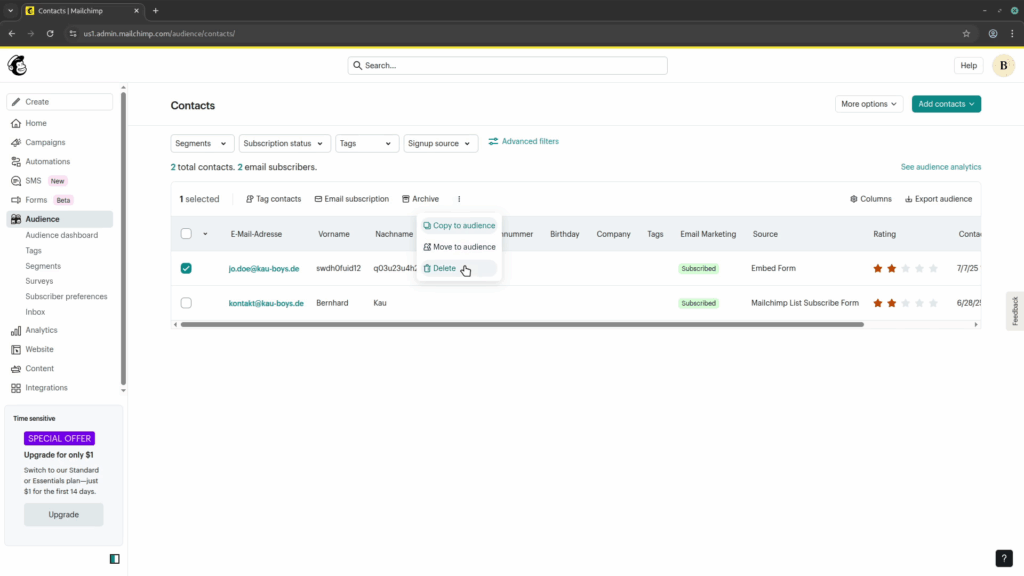
After you have logged into your Mailchimp account, navigate to “Audience” and select the contacts you want to delete. Then you hover over the three dots right of the “Archive” button and then select “Delete” from the drop-down:
Archiving or deleting a contact?
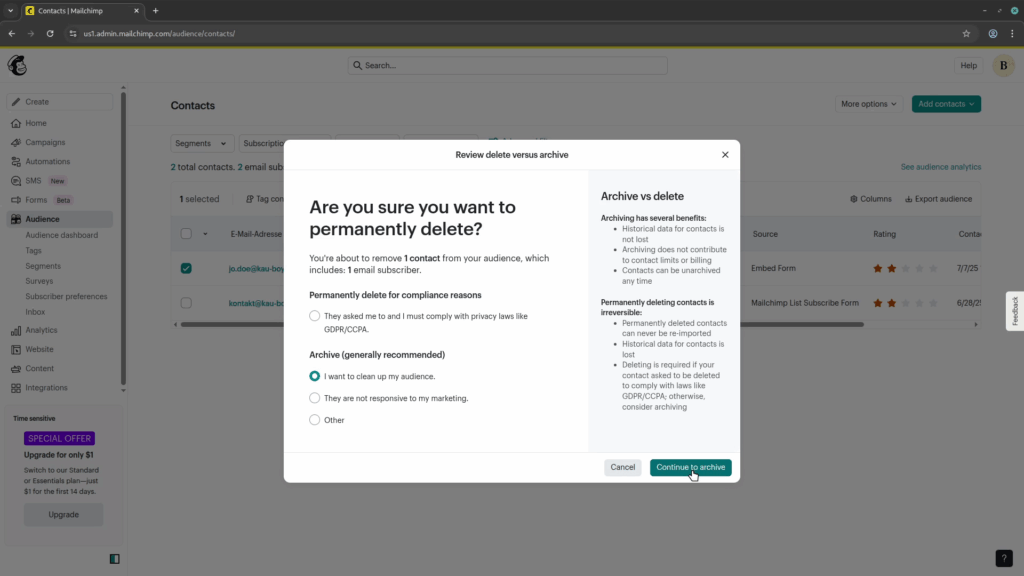
This opens a modal, and here it is a bit confusing. It asks: “Are you sure you want to permanently delete?” you contact. For the option that would do that, the selection is labeled “They asked me to and I must compy with privacy laws like the GDPR/CCPA”, which might not be the case for you. If you only want to remove the contact for other reasons, you might choose “I want to clean up my audience” instead, and then click on “Continue to archive”:
The confusing archive dialog
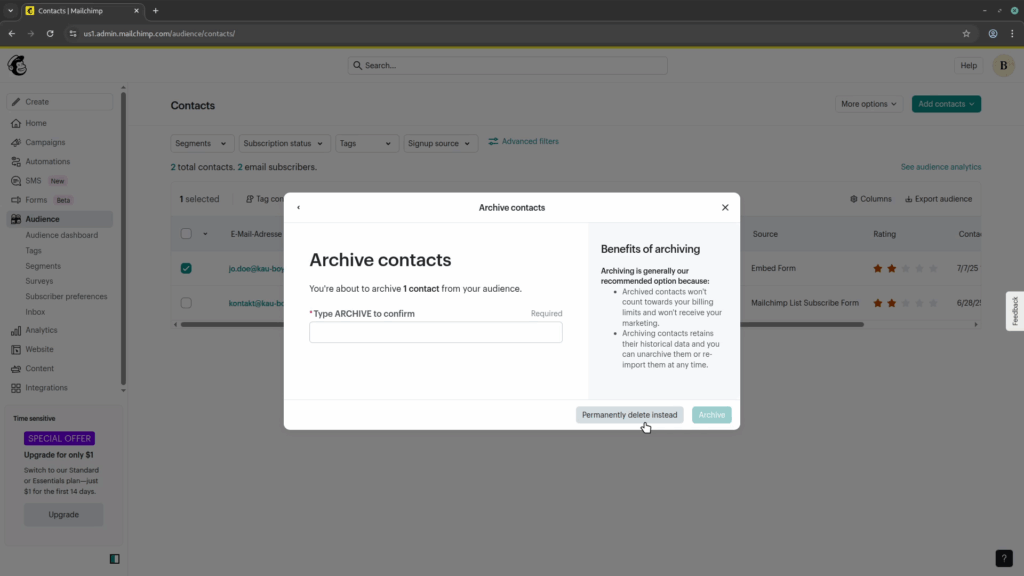
As you actually wanted to delete the contact, you now get the “Archive contacts”, which is not what you want. To get to the dialog you need, click on the gray “Permanently delete instead” button in the bottom right:
Deleting the contact, finally!
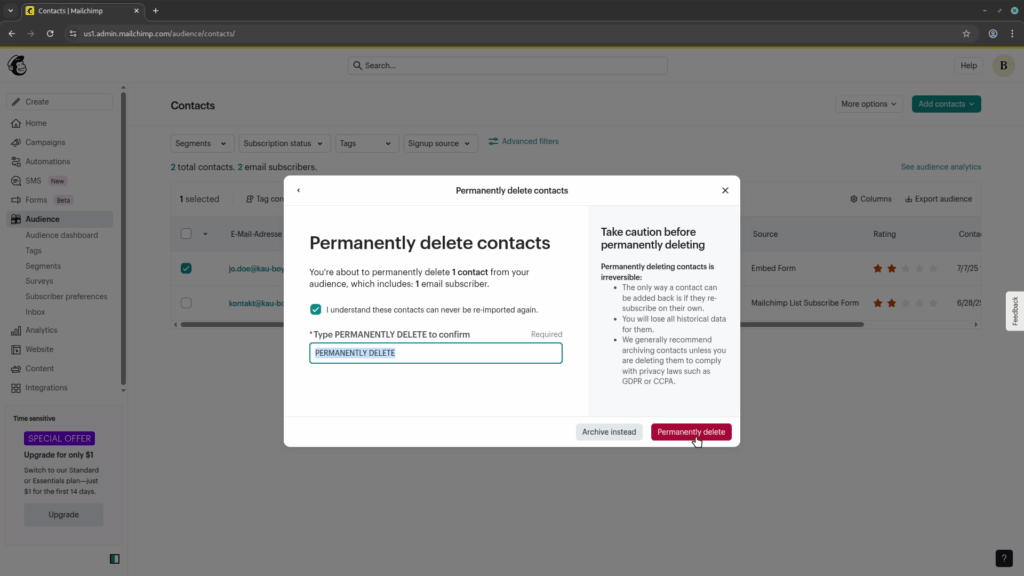
When you made it this far, either directly, or “through the wrong dialog”, you now have to face the biggest challenge of all. You have to type “PERMANENTLY DELETE” into the input field. If you are lazy, like I am, you can also select the text and drag-and-drop it into the input. This finally activates the red “Permanently delete” button and after clicking it, the contact is gone.
You prefer a video tutorial? Here you go!
As mentioned before, this is the first blog post that is also available as a video. You can watch it on YouTube. Even though I’m a big fan of “owning your content”, I also have to be realistic that videos are easier to find on streaming platforms.
Since this is my first video, I’d highly appreciate it if you would watch it and give me some feedback. It’s really short and tries to explain only the necessary bits, without a large introduction. If you are willing to subscribe to my new channel, that would also be great and help me get some more visibility. But now you can watch the video here, or on YouTube:
What did you find better? Was the text plus images explanation good enough? Or do you prefer such content in video format, so you can follow the clicks you have to make more easily?
The screenshots in this blog post have all been taken from the video file, so they match what you would see in the video.
For comments on your preferred format, please post them under this blog post. For general feedback on the video, comment on YouTube instead.
Two weeks ago, I wrote the blog post celebrating 16 years of working with and blogging about WordPress. You’d think that after such a long time, you have seen everything in WordPress, especially all the “old stuff”. But you have no idea how much there is!
This week, I’ve found some piece of code, that really surprised me. I wanted to cover that in a blog post, but forgot to write it down. Trying to find that code again, I found something even more mind-blowing, which I want to cover today.
The trash as a “safe place”
We all do that. We write some content, are not happy with it, and move it to the trash. Most desktop operating system have a trash as well. Mine has currently only three file in it, all deleted in the last two weeks. But when I was using Windows as my daily OS, I may have hundreds of files in it, sometimes wasting several GB of storage. It was often safe to just empty the trash, but in some cases, you would find files, you didn’t want to delete in the first place. So it was reassuring to know, that the trash in Windows (and many other systems as well), does not get deleted automatically. That’s not the case in WordPress! 😮
Trashing things in WordPress
There are two things you can trash: posts/pages (and other post types) and comments. But did you know that they get deleted after 30 days? I did not know that!
The EMPTY_TRASH_DAYS constant
When trying to find the code for this other topic, I found the EMPTY_TRASH_DAYS by accident. It has a default value of 30, which means that any post or comment, that has been trashed at least 30 days earlier, will be deleted. This is done by the wp_scheduled_delete WP-Cron event, that runs daily.
When you set the constant to 0 (or another “falsy” value), you basically disable the trash altogether, and all “Trash” links in the backend will become “Delete Permanently” links.
When you trash a post or comment, WordPress will add two meta values _wp_trash_meta_time, with a timestamp on when the entry was trashed and _wp_trash_meta_status, reflecting the previous post or comment status, since they change to trash, and WordPress will restore the previous status, if you restore an entry from the trash.
Conclusion
If you are using your trash to “move things out of sight”, be aware, that they will be deleted after 30 days. If you want to extend that time, simply define the EMPTY_TRASH_DAYS constant in your wp-config.php with a (much) higher values.
Have you known this constant before reading this blog post? Have you ever used it, and if so, have you increased or decreased the time, or rather used it to disable the trash completely?
For some of us, our 16th birthday was something special. In Germany, you could go to movies rated 16+ and be alone in the cinema until midnight. Others fulfilled their dream of getting a motorcycle license. In the US, you can even get a driver’s license for a car. My blog also turns 16 today and a new chapter begins.
Closure of more plugins in prospect
Last year, I had hoped that I would finally be able to close the Language Fallback plugin. But unfortunately, Preferred Languages has not landed in the Core. However, the now longer release cycles will bring some movement into the matter, as the plugin now has a good chance of finally being included in one of the next major versions. Important preliminary work for the necessary performance optimization has already been implemented in WordPress 6.5 into Core.
At WordCamp Leipzig, I also learned that an interface for my Embeds for ProvenExpert plugin will soon no longer be available. But I’m not too sad about that, because there is now an official plugin from ProvenExpert that also implements blocks. Mine currently only offers widgets, and I save myself the work on the branch that implements the blocks. However, I will of course try to implement a “migration path” for all those who are currently still using my plugin so that they can switch over without any problems.
The numbers for the past year
Visits to the English blog have increased by around 12%, but for the German blog, they have dropped by 23.1%, which I’d assume is also caused by the rise of AI, which presents answers without the need to visit the site. Looking at the Google Search Console, clicks have increased by around 43% and impressions by around 76%. The numbers for the German site are also positive, but not this high.
One interesting metric is the “visit duration”, which increased by 240% for English and 300% for German! So while AI might have caused a drop in overall traffic, the “traffic quality” has increased, and visitors read much longer, once they clicked a link. As I’m not pursuing a commercial purpose with the site, the numbers aren’t that important to me. I’m just happy when I can help others, and especially when someone leaves me a comment. Unfortunately, there were only 7 comments, 2 of them from me. You are all welcome to change that directly under this post 😉
If you want to see more stats for the German blog, you can find them on the translated post – which you might just translate to English, using AI, if you don’t speak German. 😀
The previous top post dropped to the third place. The new two top posts were both written in 2023 and climbed all the way to the top.
When you check the Top3 for German, you will find different topics. The one about how to debug errors in Contact Form 7 was not yet translated into English. But since it was so successful, I did that at the end of last year. I also took the opportunity to test the content again with the current version of WordPress and Contact Form 7 and updated all the screenshots. There is also another piece of news concerning this post, but more on that in a moment.
Classic Themes will still work in 2025
Just 12 months ago, I was optimistic that my project to reimplement the current theme as a block theme would be successful. But less than 2 weeks later, I had to admit to myself that the goal was not achievable in the desired way. In November, I abandoned the project for the time being. In the four months between these two posts, I also invested a lot of time in the theme and had to neglect blogging.
I still plan to replace the current theme, but no longer with the same goal. I will accompany the new attempt with posts again, but perhaps in a different way.
New project: supplementary videos for the blog
I have often faced the problem, that I want to write a blog post on a topic, but found it very difficult to write it in text, code examples and images. Some things are just too complex to explain them well enough in this form, especially when you need a lot of steps and don’t necessarily want to have 20 screenshots of every single one of these steps. That’s why I would like to take on the project of explaining such topics in a video. I already have a YouTube channel (there is also an English one, but currently without any videos) and have already produced a video as a test. And now we’re coming back to the second-placed German post, because this one is probably a good example of a blog post, to record a video for. As soon as it is finished, I will present it in a separate post and probably include it in the original post.
Conclusion
I was able to achieve some goals, but failed on others. I only managed my 26 posts through the Advent calendar in December, but I still really enjoy sharing new posts with you. If the videos work well, you can look forward to completely new topics in the future that I haven’t tried to tackle yet as blog posts.
Of course, there has to be a video at the end. Last year I shared the WordCamp Europe announcement with you, but of course it makes more sense to present my first (German) YouTube video here. Maybe you’d like to do me a favor and subscribe to the channel (or the English one). That might motivate me a bit more to record the next video even faster, or translate the current one. I haven’t tested these “AI video translations with your voice in a different language”, but maybe you can give it a try and tell me how it sounds in English (or you native language). 😉